
A menu board on a Fire TV Stick
A Fire TV Stick turns any screen with an HDMI socket into a menu board, and it is the easiest television there is to set up: the free Counterboard app is in the Fire TV store, so there is nothing to type on the screen and nothing to unlock. About two minutes, one step at a time, and it comes back on by itself every time the screen is switched on.
One screen free, no card. Works on any screen with a web browser, or any screen with an HDMI socket and a streaming stick.
Before the stick
First, the board to put on it
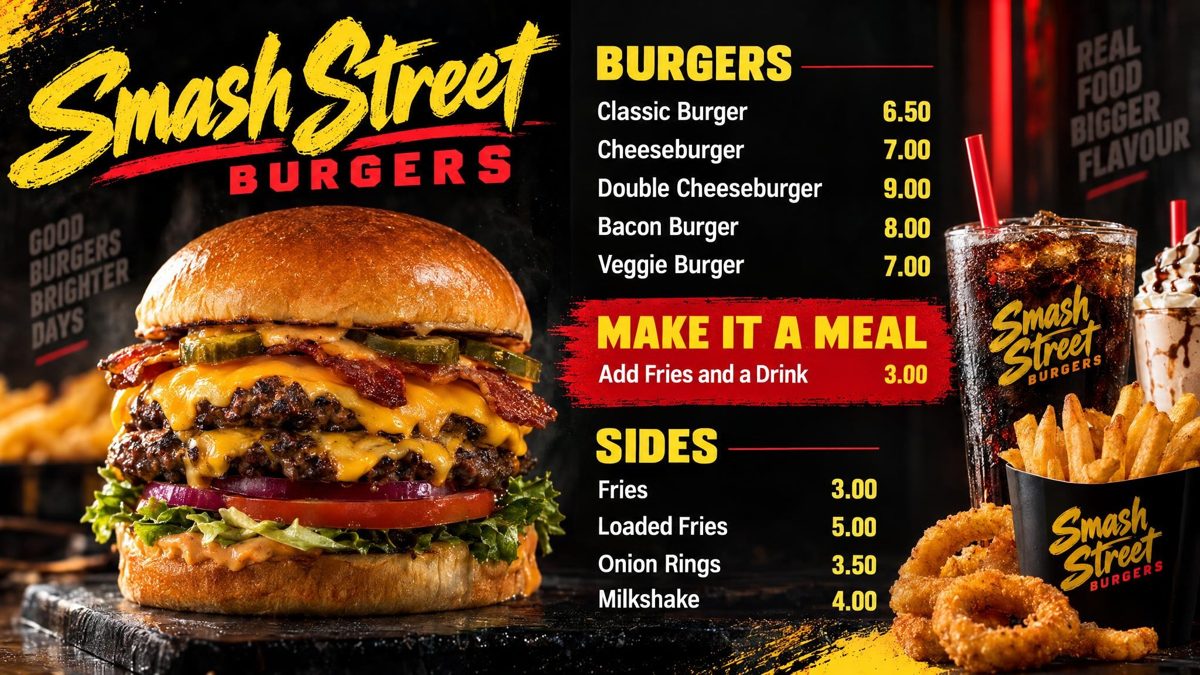
You are the designer. You say what you want in your own words: the colours, your name across the top, what goes where. AI designs the finished board in about two minutes. Not quite right? Say what to change and it is drawn again. There is no design software to learn, and nobody else trying to guess what is in your head.
Sign up at counterboard.com on your phone, say how the board should look, and put your prices in by typing them or taking a photo of your price list. About two minutes later the finished board is there. Do this before you start on the screen.
Running a takeaway? Fire Stick menu board for takeaways covers the takeaway side: the board, price changes in service and a second screen for deals.
Which stick
Check it says Fire OS on the box
A Fire TV Stick 4K or Fire TV Stick 4K Max is the one to get, from a supermarket, an electrical shop or online. Check the box says Fire OS. Some of the newest Amazon sticks run a system called Vega OS instead, and those will not show a menu board. A Google TV stick or Chromecast with Google TV works too.
- Plug it inPut the stick into any HDMI socket on the back of the screen, and its small cable into the plug. Do this on the screen the menu is going on.
- Find it on the screenPress Source or Input on the screen remote until you see the stick.
- Give it your wi-fiThe first time it comes on it asks for your wi-fi and the password. That is the only time it asks.
The app
Two minutes, and nothing to type on the screen
The free Counterboard app is in the Fire TV store. It is the whole set-up: no browser, no address typed letter by letter with a remote, and nothing to unlock in Settings.
- Search the Fire TV for itOn the Fire TV home screen, press the magnifying glass and type counterboard. It is the green C, from CLEARDESKPRO SOFTWARE.
- Press Get, then OpenIt is free, and it installs in a few seconds.
- Six letters come upThe app puts six letters and numbers on the screen, something like HY9CJT.
- Type them into your phoneIn Counterboard on your phone, open Your screens and type the six letters in. Your board is on the screen seconds later.
That is the job finished. Switch the screen off tonight and on in the morning and your board comes straight back: the app starts itself, and it keeps showing the board if the wi-fi drops. Nothing below this line is needed on a Fire TV.
Any other television
The way in without our app
An Android TV or a Google TV stick takes our app from Google Play: search it for counterboard and install Counterboard: Menu Board, free, and it shows the six letters itself. A Samsung, an LG or a laptop goes the way every television went before it: open counterboard.com/player in the television’s own browser (on a Fire TV that will not take our app, Amazon’s free Silk Browser is the one to search for), then type the six letters it shows into Your screens on your phone. It is the same board and the same two minutes.
The one thing a browser does not do is come back by itself: switch the screen off and on and somebody has to open the address again. Ten minutes, once, fixes that. It puts a free browser called Fully Kiosk Browser on the television, set to open your board every time it comes on. On an Android TV or Google TV, install Fully from Google Play and start at the fourth step; on a Fire TV without our app, all six:
- Let the stick install appsOpen Settings, then My Fire TV, then About. Press the button on Fire TV Stick seven times. Go back one screen: Developer Options is now there. Turn on Apps from Unknown Sources.
- Install DownloaderOn the home screen, search for Downloader. It has an orange icon. Install it: it is free.
- Fetch the browserOpen Downloader. Type counterboard.com/fully into the box, nothing else and no https, and press Go. When it has come down, press Install, then Done.
- Give it your board’s addressOpen Fully Kiosk Browser. In the Start URL box type https://counterboard.com/player/ exactly. Leave Fullscreen Mode on and the other three off. Press START USING FULLY.
- Pair itSix letters come up on the screen. In Counterboard on your phone, open Your screens and type them in.
- Make it come on with the screenOn the remote, press and hold Back to open the settings. Open Device Management. Turn on Launch on Boot and Keep Screen On. Press Back to return to your board.
Switch the screen off tonight and on again in the morning: your board should come straight back. A setting called Kiosk Mode stops anybody leaving the board with the remote. It is a one-off paid extra in Fully Kiosk Browser, worth having in a busy shop but not needed to get going.
Our own screen app is in the Amazon Fire TV and Google Play stores, and it is free: on a Fire TV, an Android TV or a Google TV, search for Counterboard. Counterboard walks you through whichever of these your television needs, one step at a time, inside the dashboard.
What it costs
Priced by how many screens you put up
One screen free, for as long as you like, with a small counterboard.com band on the board, and no card. Without the band, so much a screen: £14 a month for one screen, and £7 for each screen after it. No VAT charged. The price list on the front page shows it in dollars and euros too.
Every screen gets the same dashboard and the same boards; what changes with the price is how many screens you put up and how many credits come with them. Each screen gets a board drawn for it, free. After that everything we draw is credits, and a credit is a pound: a price change is one, a new look or an item added, taken off or renamed is two, a whole new board is three. Each paid screen includes two credits a month, and they start again on the 1st; more can be bought inside Counterboard, ten for £9 or more in a bigger pack, with no change to your plan. No contract: cancel any time.
Questions
What people ask
Does it work without the internet?
The stick needs the internet to get your board, and to get a new price when you change one. Once the board is on it, the screen keeps showing it if the connection drops.
Where do I find the app?
Search the Fire TV itself for counterboard. It is free, from CLEARDESKPRO SOFTWARE, and nothing else needs installing on the stick.
Which Fire TV Stick should I buy?
A Fire TV Stick 4K or 4K Max that says Fire OS on the box. Avoid the ones that say Vega OS: they will not show a menu board, and the Counterboard app will not install on one.
Is the Counterboard app free?
Yes. The app in the Fire TV store is free and always will be: it is the window your board is shown through. What you pay for is Counterboard itself, by the number of screens you put up.
Can I use an Android TV box instead?
Yes, and with our own app: Counterboard is on Google Play as well as in the Amazon Fire TV store. On the Android TV or Google TV, open Google Play, search for counterboard and install Counterboard: Menu Board. It is free, it shows the six letters itself, and it comes back on with the screen.
Is my screen too old?
If it has an HDMI socket, a Fire TV Stick will run on it.
More guides
Other questions shop owners ask
How to put your menu on a TV or screenChange your TV or screen menu from your phoneSalon and barber price list on a TV or screenA digital menu board without a designer: what each way costsHow to make a digital menu board for freeA free QR code menu for your takeaway or cafeTakeaway menu board ideas that sell moreCanva or Counterboard for a TV or screen menuCounterboard or Yodeck for a menu board?Yodeck alternatives for a TV or screen menuScreenCloud or Counterboard for a menu board?Digital menu board templates, and the way without oneOpening hours sign on a TV or screenMeal deal offers board on a TV or screenA pub what's on board on a TV or screenCounterboard or Menuboard Manager for a menu board?Counterboard or a light-box menu board?Best digital menu board for chip shops UK 2026Fire Stick menu board for takeaways
Counterboard is for any business with prices on a wall, in any country. See how it works.
In another country? This page for the US.